2 Apr 2016

How To Know If Someone Blocked You On Whatsapp

Make whatsapp call (most effective one):-

If someone has blocked you on whatsapp then you won't be able to connect a whatsapp call with that person. If you try calling that person via whatsapp call then your call will automatically end without connecting and moreover you'll always get a disconnect call message.


So this would be the clear sign if someone has blocked you on whatsapp. 

Check message delivery (double tick mark):-

So if someone blocked you on whatsapp then your messages won't get delivered to that person. This simply means that you won't be able to see double tick mark sign on messages. You guys already know double tick mark (read receipts)/ blue ticks is the acknowledgement that the messages is being delivered.

So if your messages are not being delivered it simply means that it may be if the person is not in internet range or you're blocked.


So Guy's Here you learn How to know if someone blocked you on whatsapp. Don't Forget to feedback us by commenting on post.

Thank You..!!!

25 Jan 2016

How to Make Your Computer Faster - 10 Tips

How to Make Your Computer Faster
How to make your computer faster is a question that may be bothering many of you struggling hard with slower machines. Computers/Laptops start to slow down as they get older and clogged up with files, unused software and other digital debris. Even laptops with the fastest processors can start to run slow over time. However, that doesn’t necessarily mean you need to replace your machine with a new one or hire a computer geek to make your Laptop run faster. Thankfully, you can  speed up your machine nearly to its full speed a lot easier than you think with few easy maintenance steps or inexpensive upgrades.
Here are 10 proven simple tips on how to make your computer or laptop run faster, some of which of course, have been suggested many times before by computer experts.

1. How to make your Computer faster – Check free space on hard disk

make computer run faster
As you use your computer and load programs, files, music, photos etc, the available space on your hard disk continually reduces. You should keep tabs on how much free space you have on the hard disk because Windows uses some of that space to keep information that it uses to run. If the available disk space drops below a certain point Windows will slow down considerably. Going by rules, to keep the computer running smoothly, at least 15% of the hard disk space needs to be kept free. When your hard disk free space drops below this level you need to consider either removing some of the files that are using up valuable space or buying a second hard disk.
To check this, go to Computer > Right-click on Local Drive > Go to Properties. If the Pie-chart in the window that opens up shows mostly full, you should start removing any unnecessary programs and files from your laptop to make it run faster.

2. How to make your Computer faster – Remove temporary files


As mentioned earlier cluttered hard drive slows down your computer. Every time you work on your computer, many temporary files are saved on your HDD. If you have less than five gigabytes of free space, it’s time to clean your hard drive. Windows has included a built-in disk de-cluttering tool called ‘Disk Cleanup’ which can clean up hundreds of megabytes of temporary files, sometimes even gigabytes. There are a few different types of file categories that Disk Cleanup targets when it performs the initial disk analysis such as downloaded Program Files, Temporary Internet Files, Recycle Bin, Setup Log Files etc.
To Open Disk Cleanup go to Start>All Programs > Accessories/Administrative tools > Disk Cleanup. It will open a window in which you can choose what to delete. Check all the boxes except for the game files and setup files.
You can also get rid of the temporary files and clean up your hard drive disk space easily and most effectively with a very good free program called Ccleaner. You can download a free version of Ccleaner from here.
Thus, disk cleaning is one of my important tips on how to make your laptop run faster.
Check on this action once every 2 or 3 weeks;

3. How to make your Computer faster – keep big files off the desktop

Clean Desktop
Saving all your files and programs on the desktop may be handy, but it can really slow down your computer. The various files and programs saved on the desktop are represented by images, and these images, including the background image on the desktop, do take up memory. So it follows that more images on your desktop mean more images stored in memory, which in turn mean less memory available for other applications. If you have a lot of files, you can put them in separate folders. Create shortcuts on your Desktop for the folders or files you frequently use. By doing this, you will free up operating memory, reduce the time and frequency the hard drive is used and improve the response of your computer to programs you open and things you do. Thus keeping your desktop clean is one of the simple tips on how to make your computer faster.
Do a desktop cleanup every 2 or 3 weeks to make sure you don’t have a lot of files sitting on it.

4. How to make your Comuter faster – Defragment the hard drive


Over time, a hard drive becomes fragmented with hundreds of files broken up in many locations across the drive. Ultimately, this slows down a computer’s response time because it takes longer for it to access information. That’s why using a De-fragmenting program can play an important role in speeding up your computer. Defragmentation is a process that reorganizes the fragmented files that are on your computers storage device. Running De-frag program assembles the files together making them easier to find and thereby minimizing the time to open/load the files to make your laptop run faster.
To run the program, open Computer > Right-click on your main drive > Choose Properties > Go to the Tools tab and choose De-fragment Now/Optimize and De-fragment. With Windows Vista, 7 and 8 this is not such a big deal anymore. They run the built-in De-fragmenter automatically on a schedule.
Check on this action once every 2 or 3 weeks;

5. How to make your Computer faster – Check for disk errors


Another important action to make your slower computer run faster is to fix disk errors usually caused due to improper or sudden shutdowns, corrupted software, metadata corruption, etc. You can improve the performance of your computer and prevent its slow down by checking your hard disk, once in a while for errors and making sure that the hard disk has no errors and has not developed bad sectors. In order to ensure this go to Start > Computer > Right-click the Hard Drive > Select Properties > Tools tab > Click ‘Check Now’ under the Error-Checking area. When the dialogue box opens, check both boxes. If you get a window saying that Windows can’t check the disk while it’s in use, click on Schedule Disk Check and then OK. It will run on your next reboot. If no errors are found after the check, you will see a message – You don’t need to scan this drive. You can, nevertheless, choose to check the drive. Click on Scan drive to do so.
Ideally a full scan should be done every month to prevent problems;

6. How to make your Computer faster – Remove unused programs

You can free up storage space and memory by uninstalling unused programs. These may include trial versions of software that came with your new computer which you probably don’t even know they exist, old software or games that you no longer play, out-of-date anti-virus programs etc. However, there may be some programs you are not familiar with and may require some examination before deletion. When in doubt, don’t remove anything you are not acquainted with. It may be critical for functioning of your computer. The programs which you have not used for years may be candidates for removal. If you are still unsure about which programs to keep and which you don’t need, you can try a third-party program called ‘PC Decrapifier’, which is free for non-commercial use.
To see the listed programs on your computer, go to Control Panel > Add or Remove Programs (or Uninstall a Program, depending on your operating system). You should remove the unnecessary programs from the list right away to make your computer faster.
Check on this action about once a month, just to cleanup;

7. How to make your Computer faster – Stop unnecessary start-ups

make computer run faster
The more programs try to load during start-up of the computer, your computer will take longer time to boot. Your computer takes much of the time starting third-party programs. Security software, printer software and driver updates are just a few examples. The frustrating part is that many of these don’t need to run at start-up. Some programs run in the background when you load your computer, even though you are not using them. Therefore, one of the most important ways to make your computer or laptop faster is to revise the start-up programs by altering the system configuration. For opening the system configuration window go to Start > Run and enter ‘MSConfig’. Choose the start-up tab in the window that opens and make necessary changes. Uncheck the boxes of the programs you don’t need to run every time your computer is turned on such as, iTunes or your printer. If you don’t recognize a program, leave it be. ‘Autoruns’ is a free program that can also help to reduce the load at start-up. It finds and disables unnecessary programs during start-up so that they don’t slow your computer. Nevertheless, it won’t stop important start-up processes, like security software etc.
Check on this action whenever you install a new program, or once a month to make sure nothing has changed;

8. How to make your Computer faster -Remove pesky viruses


Slow computers are often the result of unwanted programs that make them sluggish. Speaking of unwanted programs, malware, spyware or viruses running in the background and taking up system resources, can seriously slow down your system. They may record everything you do, or send out spam. Get rid of these, and you will be surprised to see how faster your system is running.
Install a good security software and keep it up-to-date to combat these viruses. ‘AVG’ and ‘Avast’ are two good free options. I would also suggest installing free version of ‘Malware-bytes Anti Malware’ for manual scanning and removal of spam;

9. How to make your Computer faster – Install More RAM

make computer run faster
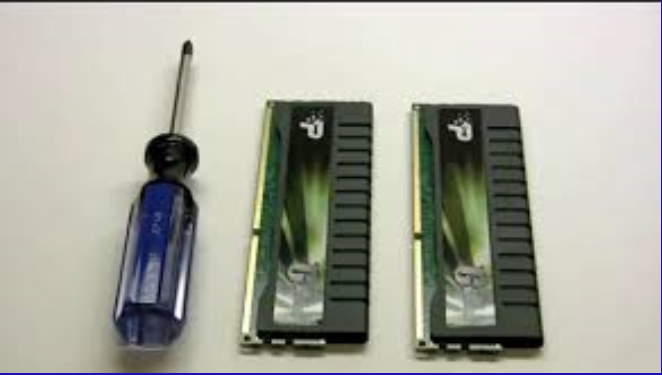
Another most likely cause for loss of speed of your computer is the memory (or not enough of it). Larger programs (like games or MS Word) use a bigger chunk of your computer’s available memory. In addition, running several smaller applications at the same time also use up considerable part of the RAM. When your PC runs out of available RAM, it starts using the hard drive instead. This is, much slower than RAM and will cause your laptop to slow down.
The baseline for RAM in a computer is 4 GB which is what you can expect from a budget model, and it’ll just about do the job. But that is not enough when you start multi-tasking and add more and more high-intensity programs. By adding more memory you can speed up your system considerably, and relatively cheaply. 8 GB is closer to the current norm, and it’ll be enough to keep your computer fresh for the immediate future. Therefore, one of the easiest ways to make your laptop run faster is to upgrade its memory. Upgrading RAM is very cost effective upgrade and you will have to spend a little to do this hardware upgrade.
Don’t forget that a 32 Bit system only supports up to 4GB of RAM. Switching to the 64 bit OS should sort out this problem;

10. How to make your Computer faster – Restart your PC routinely

Finally, one of the best and easy tips on how to make your computer or laptop faster is to restart your machine at least once daily. This would clean up all the unnecessary background processes and the junk which are in RAM that eat up lot of energy and slows down your PC.

So Guy's Here you learn How to Make Your Computer Faster. I hope all of you like it most. Don't Forget to feedback us by commenting on post.

Thank You..!!!

19 Jan 2016

How to Run Multiple WhatsApp Account on Your Android Phone (Two WhatsApp in One Phone)

how to run multiple whatsapp accounts


WhatsApp is one of the most popular and commonly used Instant messaging apps these days and due to its simplicity and Easy to Use interface, users are able to use it without any hassle.
Today, I am introducing you not one but multiple solutions to your problem that will allow you to run two WhatsApp accounts in one phone.

METHOD 1: Use Multi-User in Android Lollipop Phones


If you want to run 2 WhatsApp Accounts on One Android Phone, you can use the Multi-User Feature offered by the Android Lollipop Operating System, including Cyanogen OS and other custom ROMs. 

Follow these simple steps to begin:-

Step 1: Add Multi-User in Android Lollipop-Based smartphone. For this, just go to Settings and click on Users and then Add User.
Step 2: Once after creating a new user, provide complete details to setup a new user account
Step 3: Switch to the New User by pulling down the notification bar and clicking on New User icon.
Step 4: Once turned to New User, you will be provided with an all new phone interface with default phone settings.
Step 5: Now, Install WhatsApp in the New User Mode.
Step 6: Once WhatsApp is downloaded, enter all the details, and that is it.

Congratulations! You have successfully installed 2 WhatsApp accounts in One Single Phone without rooting or installing any other Custom ROM.

METHOD 2: USE SWITCHME TO RUN MULTIPLE ACCOUNTS

SwitchMe-multiple-accounts

SwitchMe is an Android app that allows you to have two separate WhatsApp accounts on a single Android device, but this app requires your Android smartphone be rooted.

Now, Here's the deal:

Switchme multiple account app allows you to log in and out of multiple user spaces however it needs root access to do this. However, users cannot access the other profile from their current profile because each account within the multiple profiles will have its settings, applications, and data.

Follow these simple steps to go:
Step 1: Root your Android device.
Step 2: Make sure that you have WhatsApp app installed on your smartphone.
Step 3: Install SwitchMe Multiple accounts on your smartphone.
Step 4: Run SwitchMe Multiple accounts, it will ask for Superuser request that you need to grant.
Step 5: Now create a user profile with your name in SwitchMe app. This profile will be an administrator account containing all the current apps and settings, and will also reflect your WhatsApp profile that is already installed on your smartphone.
Step 6: Now create another profile using a different name by tapping on the Create Profile button in SwitchMe app, and then choose the Switch option by selecting this account.
Step 7: Now your smartphone will restart automatically and once it is ready to use, install official WhatsApp again from Google Play Store and register it for the different phone number. That is it.

Congratulations! Unlike multi-user feature in Android Lollipop, the Free version of SwitchMe allows you to enjoy only 2 WhatsApp accounts on one single phone. However, SwitchMe's paid account allows you to run multiple WhatsApp accounts.

METHOD 3: USING OGWhatsApp


OGWhatsApp is an Android app that allows you to use two separate WhatsApp accounts on your single Android device without any need to root your Android device.

While running your normal WhatsApp account on your smartphone, you can follow some simple steps (below) in order to run a different WhatsApp account on the OGWhatsApp.

Follow these simple steps to go:

Step 1: Take a complete backup of your WhatsApp data and restore it.
Step 2: Delete all the WhatsApp data by going to Settings>apps>WhatsApp>Clear Data.
Step 3: Rename the /sdcard/WhatsApp directory to /sdcard/OGWhatsApp. You can use any file manager for Android to do this task, or from Windows.
Step 4: Uninstall your original WhatsApp app from your Android device.
Step 5: Now install OGWhatsApp in your Android smartphone.
Step 6: Once installed, remember to verify your old number that was previously registered with the original WhatsApp to OGWhatsApp. That is it.
Step 7: Now re-install the official WhatsApp for your other number from the play store.

So Guy's Here you learn How to Run Multiple WhatsApp Account on Your Android Phone. Don't Forget to feedback us by commenting on post.
Thank You..!!!


WhatsApp Flaw: Crash Anyone’s WhatsApp By Just Sending Lots Of Smileys

A
ccording to a security researcher, there is a simple way to crash the popular instant messaging app WhatsApp by just sending an insane amount of smileys. This serious WhatsApp flaw can crash the mobile app as well as the WhatsApp Web.
In his discovery, Researcher found that by sending about 4,000 smileys to a target, the WhatApp app starts to slow down and crashes due to “buffer overflow”. This flaw targets both the desktop and mobile apps.

How WhatsApp smiley bug works?

In the WhatsApp Web app, you are allowed to send a message with about 6,500-6,600 characters. But, after typing about 4,000-4,200 smileys, the browser/app starts to slow down. As you type more and more smiley faces, WhatsApp crashes when you type and send.
“….so it crashes while we type and send and in mobile too when it receives it overflows the buffer and it crashes,” Researcher explains.
This WhatsApp smiley bug affects Firefox, Opera, and Chrome PC browsers, along with iPhone and multiple versions of Android OS.

Video demonstration of WhatsApp smiley bug:

Here’s the video demonstration of the bug showing how the attack crashes WhatsApp:

Here’s how to protect yourself from WhatsApp smiley flaw?

Researcher has reported the smiley bug to WhatsApp. “This can also be used to do a Denial of service in the browser and it freezes the browser and gives a ‘not responding’ error,” he adds.
Till the issue is fixed, here’s a simple way to save yourself from the attack.
Once you receive this full-of-tons-of-smiley message from someone, you’ll have to open the messenger and delete the entire chat with the attacker.
So Guy's Here you learn How to Crash Anyone’s WhatsApp By Just Sending Lots Of Smileys. Don't Forget to feedback us by commenting on post.
Thank You..!!!

Best Hacking Apps For Android Phones 2016

Based upon the industry reviews and our own experience, here is a compilation of the top Android hacking applications. Along with the description of apps, we have provided the relevant website and download links to help you get started instantly.
Disclaimer: Please note that MritunjayTech is publishing this list just for educational purposes. We don’t support use of any tool to indulge in some unethical purposes.

9 Best Hacking Apps For Android Phones – 2016


  • AndroRAT

AndroRAT stands for Android and RAT (Remote Administrative Tools). This top hacking tool was released a long time ago as a client/server application. The app aims to give you the control of the Android system remotely and fetch the information from it. This Android app runs as a service right after the boot. So, a user doesn’t need to interact with the service. The app provides you the ability to trigger the server connection by a call or SMS.
The features in this useful Android hacking app include collecting information like contacts, call logs, messages, and location. The app also allows you to remotely monitor received message and state of phone, making a phone call and sending texts, taking picture from camera, opening URL in the default browser etc.
— AndroRAT
  • Hackode

Hackode is an Android app which is basically a collection of multiple tools for ethical hackers, IT specialists, and penetration testers. In the app, there are three modules –Reconnaissance, Scanning, Security Feed — available in the application.
With this app, you get the functionalities like Google hacking, SQL Injection, MySQL Server, Whois, Scanning, DNS lookup, IP, MX Records, DNS Dif, Security RSS Feed, Exploits etc. It’s a great Android hacking app to start with and it doesn’t ask for your private information to operate.
— Hackode
  • zANTI

zANTI is a reputed Android hacking suite from Zimperium. This software suite comes with multiple tools that are widely used for penetration testing purposes. This mobile penetration testing toolkit allows the security researchers to scan a network easily. This toolkit allows the IT administrators to simulate an advanced hacking environment to detect multiple malicious techniques.
zANTI could be called an app that brings the power of Backtrack on your Android device. As soon as you login into zANTI, it maps the entire network and sniffs the websites being visited along with their cookies — thanks to ARP cache poisoning on devices.
The various modules in the app are network mapping, port discovery, sniffing, packet manipulation, DoS, MITM, and more.
— zANTI
  • FaceNiff

FaceNiff is a top Android hacking app that allows you to intercept and sniff your WiFi network traffic. This tool is widely used to snoop into people’s Facebook, Twitter and other social media websites using your Android device. This hacker-favorite tool steals cookies from WiFi network and gives an attacker an unauthorised access to victim’s account.
FaceNiff is developed by Bartosz Ponurkiewicz — the same developer who wrote Firesheep for Firefox hacking on desktop.
— FaceNiff
  • Droidsheep

Droidsheep is an effective hacking app developed for security analysts interested in playing with Wi-Fi networks. The app has the ability to hijack the web session profiles over a network and it works with almost all services and websites.
As you fire up the Droidsheep app, it acts a router that monitors and intercepts all the Wi-Fi network traffic and fetches the profiles of active sessions. With this app, one can sniff Facebook, LinkedIn, Twitter and other social media accounts.
DroidSheep Guard, another version of app, helps you to detect ARP-Snoofing on the networks i.e. the attacks by FaceNiff, Droidsheep, and other software.
  • DroidBox

DroidBox is an app that offers dynamic analysis of Android applications. Using the app, one can get a wide range of results about the hashes for the APK package, network traffic, SMS and phone calls, information leaks via different channels etc.
This top Android hacking application also gives you the ability to visualize the behaviour of an Android app package.
— DroidBox
  • APKInspector

APKInspector is an app that allows you to perform reverse engineering tricks. With this app, you can get the graphic features and analysis functions for the users to get a deep insight. This powerful Android hacking tool helps you get the source code of any Android app and visualize the DEX code to erase the credits and license.
  • Nmap

One of the most popular network scanning apps for desktop can also be used on Android operating system. Nmap works on both non-rooted and rooted phones. If you are a beginner Android hacker, this hacking app app is a must have.
— Nmap
  • SSHDroid

SSHDroid is a SSH server implementation developed for Android that allows you to connect your Android device to a PC and run commands like ‘terminal’ and ‘adb shell’ and edit files. It provides an extra security later when you are connecting to a remote machine.
The app provides features like shared-key authentication, WiFi autostart whitelist, extended notification control etc,
— SSHDroid
So Guy's Here is Best Hacking Apps For Android Phones 2016. Don't Forget to feedback us by commenting on post.
Thank You..!!!